
Download HelpScribble – Free Windows Manual & Tutorials Tool
Overview
HelpScribble is a full‑version Windows application created by veteran software author Jan Goyvaerts. Positioned in the “Manual & Tutorials” category, the program is designed to let users author, edit, and publish professional‑looking help files, user guides, and tutorial documentation without the need for a steep learning curve. The latest release, version 7.8.8, landed on Softonic on May 29th 2024 and runs exclusively on Windows 11 or newer, delivering a modern UI that feels right at home on contemporary desktops.
Although the software is currently English‑only, its feature set is language‑agnostic, meaning you can write help content for any target audience while the interface stays in English. As a “full version” offering, HelpScribble removes the trial restrictions found in many competing tools, giving you unrestricted access to all publishing formats, theme customisation, and built‑in testing utilities. The program is distributed as a downloadable installer, and it is marketed as a free solution—making it an attractive option for independent developers, technical writers, and small‑to‑medium businesses that need a reliable way to generate in‑app help, PDFs, CHM files, or web‑based tutorials.
Because it is a desktop‑only solution, you won’t have to worry about browser compatibility or online subscription fees; everything you need lives locally on your Windows machine, ensuring that your documentation remains secure, version‑controlled, and always available even when you’re offline.
Key Features
- Multi‑Format Export: Generate help files in HTML, PDF, CHM, and Markdown formats with a single click.
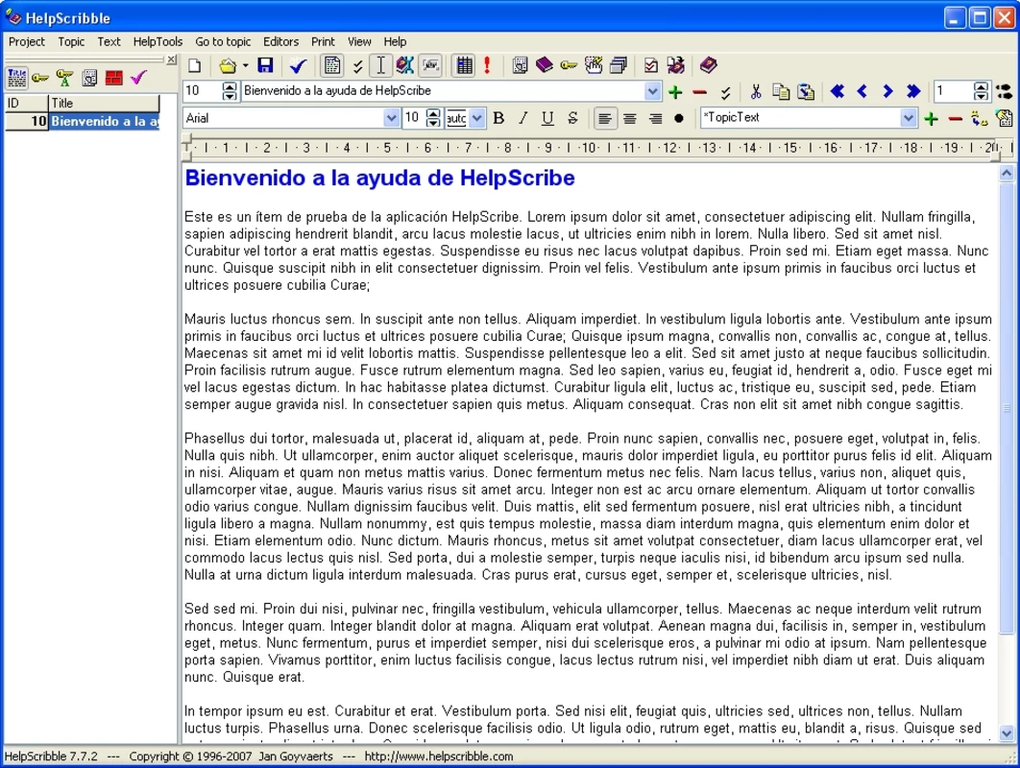
- WYSIWYG Editor: A visual editor that mirrors the final output, allowing you to format text, insert images, tables, and code snippets without manual markup.
- Theme & Style Designer: Choose from pre‑built themes or create custom colour schemes, fonts, and navigation structures to match your product branding.
- Context‑Sensitive Indexing: Automatic generation of searchable indexes, glossaries, and cross‑references that keep large manuals easy to navigate.
- Live Preview & Testing: Instantly preview how the help will appear on different screen sizes and operating system themes (light/dark).
- Integrated Translation Support: Export strings for localisation workflows, making it simple to hand off content to translation teams.
- Version Control Compatibility: Works smoothly with Git, SVN, or any file‑based versioning system, allowing collaborative authoring.
- Secure Local Storage: All project files are saved on your hard drive, ensuring that sensitive documentation never leaves your network.
- Extensible Plug‑in Architecture: Developers can add custom exporters or post‑processing scripts using the built‑in API.
- Free Full‑Version License: No hidden trial periods or feature locks; all capabilities are available from day one.
Installation & Usage Guide
Getting HelpScribble up and running on a Windows 11 system is straightforward, even for users who are not particularly tech‑savvy. Follow these steps to ensure a smooth installation and start creating documentation right away.
Step 1 – Download the Installer
Visit the official Softonic page or the developer’s website and click the “Download HelpScribble” button. The file is typically named HelpScribble_7.8.8_Setup.exe. Because the application is free, you won’t be prompted for a credit‑card number, but you may be asked to confirm that you accept the end‑user license agreement (EULA).
Step 2 – Run the Installer
After the download completes, double‑click the executable. Windows will display a User Account Control (UAC) prompt; click “Yes” to allow the installer to make changes. The wizard walks you through a standard set of screens: choosing an installation folder (the default C:\Program Files\HelpScribble works for most users), selecting start‑menu shortcuts, and opting into automatic updates. For a clean install, leave all options checked.
Step 3 – Initial Launch & Configuration
Once installation finishes, launch HelpScribble from the desktop shortcut or the Start menu. On first run, the application asks you to specify a default project directory and whether you prefer a light or dark UI theme. Because HelpScribble stores all configuration locally, these choices are remembered for future sessions.
Step 4 – Creating Your First Project
Click “New Project” on the welcome screen. You’ll be prompted to name the project, select a primary output format (e.g., HTML Help), and optionally import an existing Markdown file. The editor opens with a familiar toolbar: bold, italic, heading styles, image insertion, and a code‑block button. Drag‑and‑drop images directly from Windows Explorer into the editing pane, and the program automatically optimises them for the chosen output format.
Step 5 – Publishing & Updating
When you’re satisfied with the content, hit the “Export” button. A dialog appears where you can pick one or more formats (PDF, CHM, etc.). HelpScribble will generate the files in the output folder you specified earlier. The built‑in “Update Check” feature runs automatically on launch, notifying you of new versions so you can keep the software secure and feature‑rich.
Overall, the installation process takes less than five minutes, and the intuitive UI ensures that you can start authoring documentation within the same session you installed the program.
Compatibility, Pros & Cons
System Requirements: Windows 11 (64‑bit) or later. The application requires a minimum of 4 GB RAM and 200 MB of free disk space for the core program; additional space will be needed for project files and exported documentation.
Pros
- Completely free full‑version with no hidden trial restrictions.
- Supports a wide range of export formats, covering most documentation needs.
- WYSIWYG editor reduces the learning curve for non‑technical writers.
- Robust theming engine lets you match documentation to your brand identity.
- Local‑only storage keeps sensitive help files secure and offline.
- Seamless integration with version‑control systems encourages team collaboration.
- Automatic update checks keep the software current without manual effort.
Cons
- Only available in English, which may limit adoption in non‑English speaking teams.
- Windows‑only; no native macOS, Linux, Android, or iOS clients.
- Lacks a cloud‑based sharing feature, requiring manual file transfer for remote teams.
- Advanced plug‑in development requires some programming knowledge.
- No built‑in analytics to track how end‑users interact with the published help.
Frequently Asked Questions
Is HelpScribble really free, or are there hidden costs?
HelpScribble is offered as a completely free full‑version application. There are no trial periods, no premium upgrades, and no hidden fees. All features listed in the feature list are available to every user after download.
Can I export help files directly to a website?
Yes. HelpScribble includes an HTML exporter that creates a full set of web‑ready files (HTML, CSS, JavaScript). You can upload the exported folder to any web server or integrate it into an existing site.
Does HelpScribble support collaborative editing?
While the application itself does not have built‑in real‑time collaboration, it stores projects as standard files on disk. This makes it compatible with any version‑control system (Git, SVN) or shared network folder, allowing teams to collaborate using their preferred workflow.
What export formats are available for PDF generation?
HelpScribble can generate PDF files directly from the editor. The PDF output respects the selected theme, includes a clickable table of contents, and embeds any images or code snippets you have added to the document.
Is there a way to translate the documentation into other languages?
The tool can export all translatable strings into a CSV file, which you can hand off to translators. After translation, you import the CSV back into the project, and HelpScribble will generate language‑specific versions of the help files.
Conclusion & Call to Action
HelpScribble stands out as a rare example of a full‑featured, free documentation authoring suite for Windows 11+. Its intuitive WYSIWYG interface, extensive export options, and robust theming system make it suitable for both solo developers and small teams that need to produce polished manuals, tutorials, or in‑app help without breaking the bank. While the lack of multilingual UI and a native macOS version may limit its reach, the core capabilities are more than sufficient for most English‑centric projects. Because the software runs locally, you benefit from enhanced security and offline access—key considerations for enterprises handling proprietary information.
If you’re looking for a reliable way to create professional help files without paying for a subscription, give HelpScribble a try today. Click the download button below, follow the quick installation steps, and start building your first documentation project within minutes. Your feedback helps the community grow, so don’t forget to leave a rating or comment after you’ve explored the tool.
Download HelpScribble now – free, secure, and ready for Windows 11+







